Webpean
The Pro branch of WebCompositor, on the same Rust/wasm core
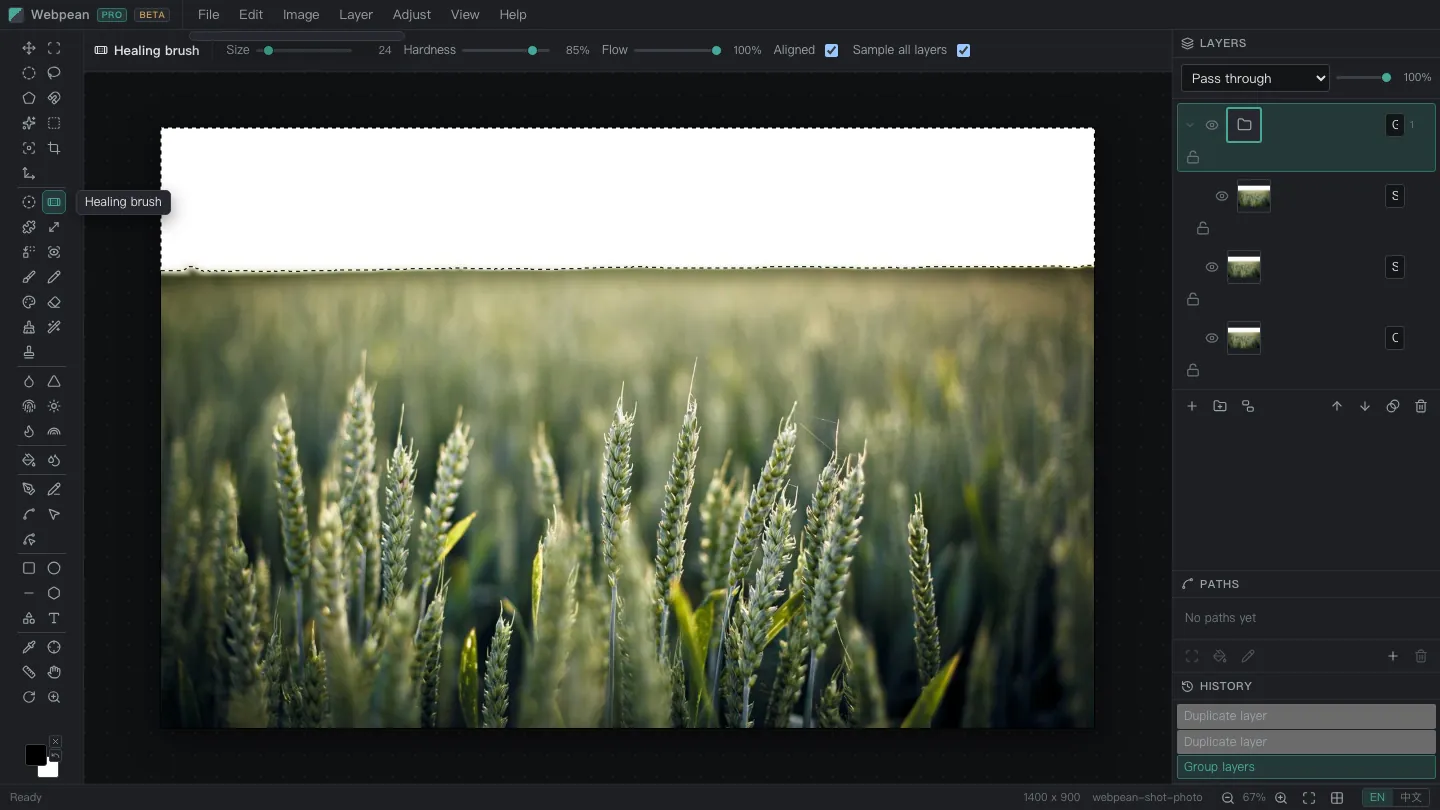
Webpean grows WebCompositor's toolbar from fifteen tools to forty-nine: magic wand, quick and object selection, the three lassos including magnetic, crop and perspective crop, spot heal, healing brush, patch, content-aware move and magic replace, clone stamp plus blur, sharpen, smudge, dodge, burn and sponge, background and magic erasers, three pens and path selection, the parametric and custom shape families, ruler, color sampler and rotate view. The layer panel is a tree with groups, pass-through blending and masks, on the same key bindings as the desktop editors. Beside masks there are clipping masks, adjustment layers and Levels / Curves, and a Photoshop PSD opens and saves back (8-bit RGB subset). This page is itself the editor's door: pick an image, or paste a screenshot, and it lands on the canvas.
Entry
Two doors, and the file never touches a server
The landing page and the editor are two bundles on one origin with no build-time link between them, so the file meets in same-origin IndexedDB: this page writes one record, navigates with the key in the address bar, and the editor reads it at boot and deletes it - a reload does not reopen the same file. An encoded screenshot is routinely tens of megabytes, so sessionStorage is out and nothing is uploaded.
Open an image or PSD
The button picks a local file: an image becomes the document, its name the document name and its pixel size the canvas size; a PSD opens as the layer stack inside it (8-bit RGB subset), layers, masks and blend modes included. The same path as File - Open inside the editor.
Paste with Ctrl+V
Paste an image or a PSD from the clipboard anywhere on this page and it takes the same hand-off. Pasting while already editing inserts an image as a new layer and opens a PSD as a document, exactly as in the desktop editors.
Empty canvas
Entering with nothing is fine too: the link beside the button opens the editor on its default canvas, where you can paint, paste, or drop a file onto the window.
Tools
Forty-nine tools, in toolbar order
The numbers are the toolbar order, top to bottom. Single-key shortcuts match the desktop editors: V move, M marquee, L lasso, W wand, C crop (Shift+C walks to perspective crop), J spot heal, B brush, E eraser, S clone stamp, O dodge, G paint bucket, P pen, A path selection, U shapes, T text, I eyedropper, H hand, R rotate view, Z zoom; blur, sharpen and smudge carry no single key, exactly as on desktop; grouping is Ctrl+G / Ctrl+Shift+G and free transform is Ctrl+T.
Capability
Six tool families
A family is how tools of one feel group together in prose, not a grouping in the UI; the number ranges follow the toolbar list above. Every family works today - beta refers to PSD read/write and Levels/Curves, which are still on the roadmap.
Selection 01-09
Rectangular and elliptical marquees, the three lassos (polygonal by clicks, magnetic by edge), magic wand, quick selection and object selection. The marching ants trace the outline the core actually computed, not an approximation; selections add, subtract, intersect, feather and invert.
Retouch 10-17
Crop leads, and perspective crop straightens the quad you drag into the canvas, so a document shot at an angle comes out square with every layer and mask warped along with it. Then spot healing brush, healing brush, patch, content-aware move, magic replace and red eye: pixels sampled around the target fill it, blended at the boundary so the repair leaves no hard edge. The clone stamp lives in the brush family and feels the same.
Brushes, erasers and fills 18-32
Brush, pencil and color replacement brush, clone stamp, the six keyless tools blur, sharpen, smudge, dodge, burn and sponge, plus eraser, background eraser and magic eraser. Size, hardness, opacity and flow apply live. The paint bucket and the gradient belong to this family too: with a selection on the canvas both stay inside it.
Pens and paths 33-37
Pen, freeform pen and curvature pen lay down Bezier paths; path selection and direct selection move anchors and handles. In the paths panel a path can be loaded back as a selection, stroked or filled again - it is not a one-shot stroke.
Shapes 38-43
Rectangle, ellipse and line, a parametric shape with corner radius, polygon sides and star inner ratio, and a custom shape with twelve presets; the dragged box is the shape's bounding box and the options bar edits it live.
View and measure 44-49
Beside text and the eyedropper: the color sampler reads several points into the status bar, the ruler measures distance and angle, the hand pans, rotate view turns the view without turning pixels, and zoom inspects; size and zoom stay live in the status bar.
Four things you can count
tools in the column, against fifteen in stable
layer blend modes, pass-through included
commands across the eight menus
panels on the right: layers · paths · history
Layers
The layer panel is a tree
Layers, groups and masks live in one tree: groups collapse and blend pass-through, masks hang off layer nodes, and the marching ants follow the mask's real outline. The history panel records every step and rolls back without losing the selection.
Groups and pass-through
Layers group, nest and collapse; a group's blend mode can be pass-through, so child blending happens inside the group first - the same semantics as the desktop editors.
Masks
A layer mask controls visibility in greyscale and takes brush and gradient strokes; selection to mask and mask to selection are each one menu command. Clipping masks are of the same family: Ctrl+Alt+G makes a layer take the shape of the one below it, and the row prints a down arrow in its left gutter.
Blending and opacity
Twenty-seven blend modes composite per layer inside the wasm core, with opacity and visibility live; the panel and the canvas read one core state, so there is no second source of truth.
Roadmap
Three things not in the beta yet
Those three sit in the later stages of the roadmap, each with its own line in the feature matrix; layer masks, clipping masks, adjustment layers and Levels / Curves are already in the beta, and a Photoshop PSD opens and saves back (8-bit RGB subset). The project file is Webpean's own JSON; export is PNG and JPEG for now.